
Category: ETL

  • How to consume a Rest API in Dynamics 365

    How to consume a Rest API in Dynamics 365

    There are many ways you can consume an API Data in Dynamics, one of them is by doing a plugin.

    The basic plugin creation workflow is as follows:

    1-Select a programming language and a framework.

    2-Create the connection to your dynamics instance(Online or On-premises).

    3-Create the connection to your API.

    4-Write the logic that will perform the syncing process between records.

    5-Compile and Register your plugin using the Microsoft’s provided Plugin registration tool.

    6-Debug your plugin, using the plugin registration tool.

    7-Call your plugin from within dynamics and use it as you like.
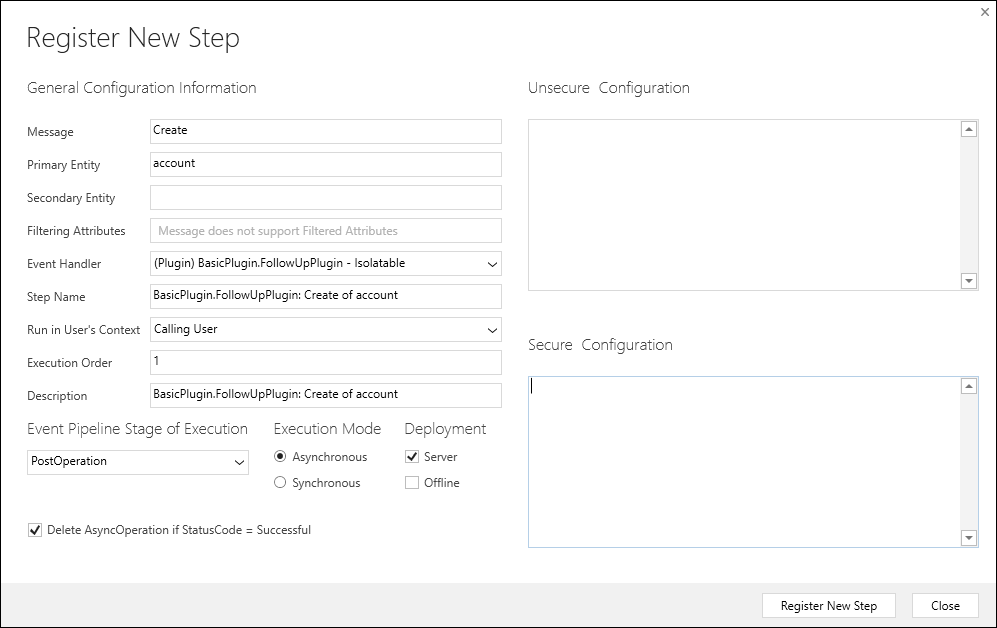
    Figure1. Plugin registration tool’s Step, this is where you assign a name to your plugin that will be called by an action inside a dynamics solution.

    One way to do all these things in one place, is by using the .NET ecosystem. Microsoft offers all Dynamics’s Sdk as NuGet packages, so you always have access to up to date data.

    Just by installing one NuGet package you have access to a vast set of tools to mingle with your CRM installation.

    What’s a plugin? Why should I use it instead of JavaScript Web Resources? Well you always should try to accomplish the task in hand by using the dynamics provided processes tools, as they more performant, then if it’s impossible to do it that way, try to see if you can achieve it using power apps using the Power Automate “Microsoft Data verse” tools. Just notice that these are paid solutions.

    Then you can start exploring custom web resources written on JavaScript which will give you a lot more customization power but need to be maintained.

    Finally, If nothing of the previous methods is enough for your needs you can write a custom plugin in C# using the .NET framework.

    Of course this is just an oversimplification, as each tool has it’s specific purpose.

    You can find more information about this in Microsoft’s official Docs:

    https://docs.microsoft.com/en-us/power-apps/developer/data-platform/tutorial-write-plug-in
  • A tale of ETL: Quickbooks and SQL Server integration

    A tale of ETL: Quickbooks and SQL Server integration

    Imagine having a CRM solution that tracks the data for all your customers, the marketing campaigns, the email campaigns, the lead to sales processes, but how do you sync all this data into your accounting solution, without having to do it manually one transaction at a time? Well, this is why ETL solutions exist between business software. In the following post I will explain a very very general overview of the project I completed not so long ago:

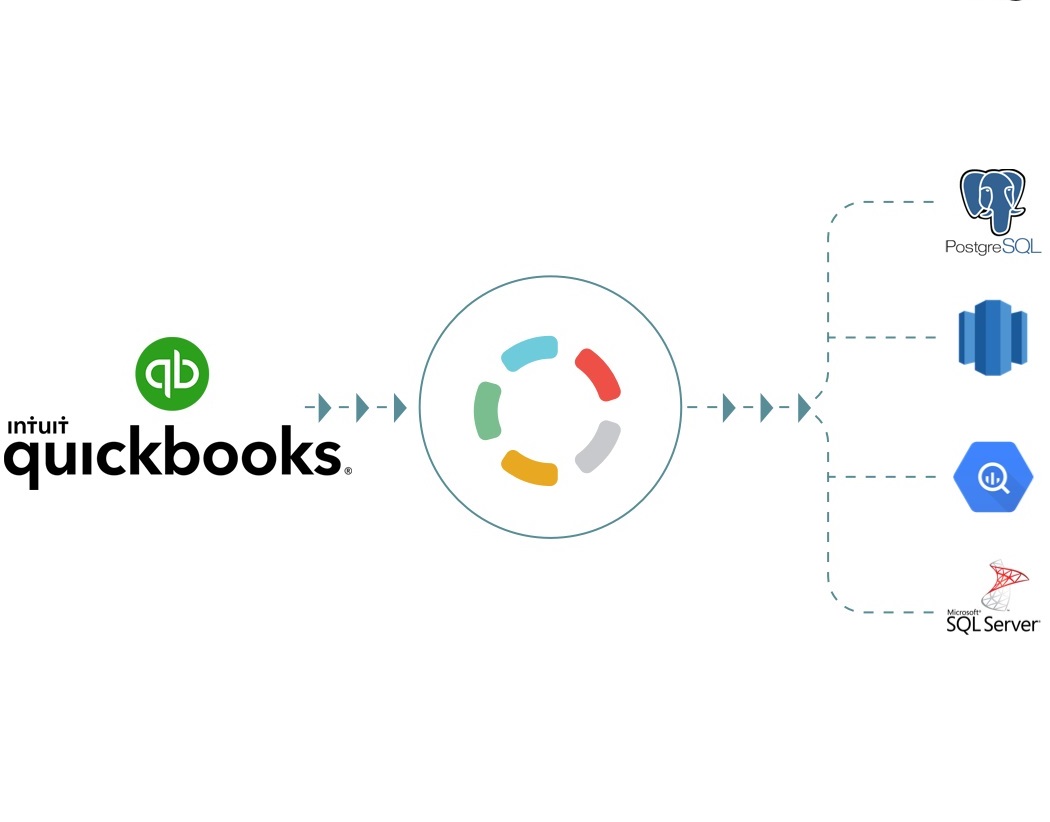
    During this project, I created an integration solution between QuickBooks and a SQL server database. For this I used SSIS.

    The following data needed to be synced between the systems:
    Account data
    Contact data
    Invoices
    Inventory
    Leads

    The solution syncs seamlessly the data from the SQL server database into Quickbooks. The integration gets the data from the SQL Database that is being fed by the ERP, does funky stuff to it in order to properly format it, and selects only the important data. And then gives it to the quickbooks database.
    What this allows is to reduce manual input of data between the systems.

    Other ways to integrate QuickBooks and your ERP system are:
    -via SSIS and the ERP database that will run on schedule.
    -via the two systems API( the most robust but costly)
    -via Zapier(easy to implement but has a monthly cost associated with each synchronization job)

    There are already many solutions built. But, if you need a very customized and specific integration you will need to use some of the above methods.

    One of the advantages of using Ssis is that if you have a license of SQL server you already have a license for SSIS.